How to build a buyback website, step by step
To build a buyback website, set it up in five steps: pick the devices you buy, price each storage size, lock status and condition, write grades customers can check themselves, add a price lock, and put the page where customers already look. This guide walks through each step in the order you do them, using Buyback Builder as the example, and what tends to go wrong at each one.
If you are still deciding between a buyback platform, a widget, a WordPress plugin or a custom build, or want to know what each costs and how long it takes, start with how to make a buyback website. This page assumes you have picked a tool and want to set it up.
What a buyback website has to do
A buyback page answers one question for a customer: what will this shop pay me for my device today? Everything on the page should move them toward that number with as little typing as possible.
The flow that works best on a phone is a short series of taps:
- Pick the device type (iPhone, iPad, Apple Watch, Samsung Galaxy, Google Pixel, MacBook, Meta Glasses or Nintendo Switch).
- Pick the model, with a photo so people can find theirs.
- Pick the storage size.
- Pick the lock status: unlocked, or the carrier it is locked to.
- Pick the condition, with plain requirements for each grade.
- See the offer, and lock it in.
Each step should fit on one screen. A customer standing in your lobby, or comparing shops on the couch, will not fill in a long form to compare offers.
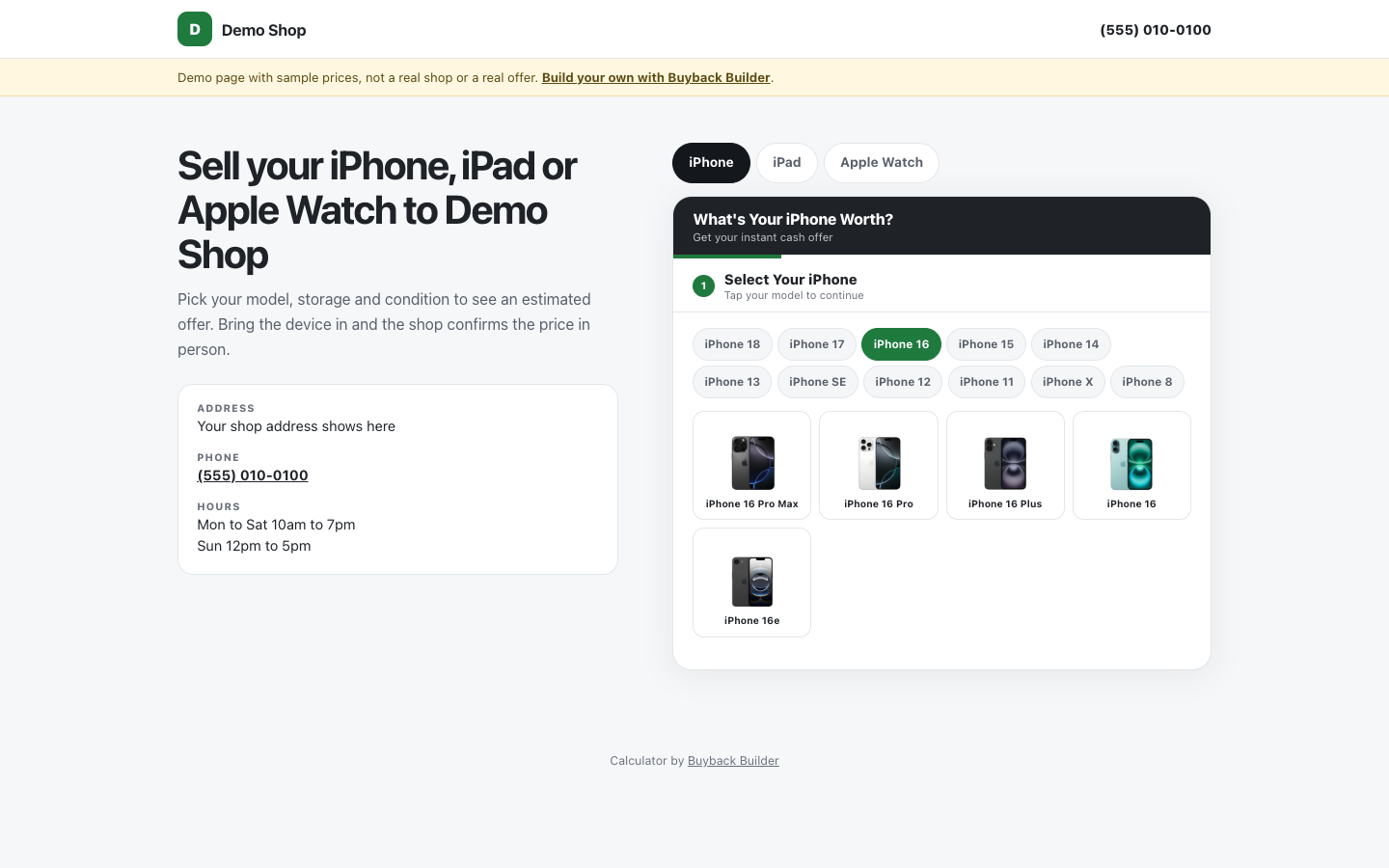
Step 1: decide what you buy
Start with the devices that actually come across your counter. For most phone shops that is recent iPhones first, then iPads, then Apple Watches. List every model you would pay for and leave out the rest. A price on a phone you do not want creates walk ins you have to turn away.
Buyback Builder starts you from a template with 40 iPhone, 31 iPad, 14 Apple Watch, 37 Samsung Galaxy, 24 Google Pixel, 25 MacBook, 6 Meta Glasses and 5 Nintendo Switch models, with storage sizes and lock options filled in, prices blank. Turn on the models you buy.
Step 2: set prices that are easy to keep current
Prices are where most homemade buyback pages fall apart. One iPhone model can have three or four storage sizes, three lock statuses and five grades: up to 60 prices for a single model, all moving with the market.
In Buyback Builder, the price table is laid out like a spreadsheet. For each storage size and lock status you enter two numbers, Market New and Market A, or turn on daily market prices to fill them in. Your percentages work out what you pay for New and Grades A to D, rounded to the nearest 5, and you can pin an exact price in any cell. If you already keep prices in a spreadsheet, export the table to CSV, paste them in, and import it back with a preview of every change. Where market numbers come from, and how often to update them, is in the guide linked above.
Step 3: write grades customers can check themselves
Condition is where offers turn into arguments at the counter. Vague grades like "good" or "fair" mean the customer picks the best one and you lower the price in person.
Use grades with specific requirements a customer can check at home: battery health percentage, whether the front or back glass is cracked, whether the device has had parts replaced. The Buyback Builder widget uses up to five grades (New, A, B, C and D), which you can rename or turn off, and each one lists its requirements on the condition step so the customer reads them before they choose.
Step 4: hold the price until they walk in
A quote with no follow up is easy to forget. Give the customer a way to lock the offer: they enter their name and email, agree to your terms, and get an offer code by email. Buyback Builder emails the customer their code, the device details, your address and hours, and prep steps such as turning off Find My and signing out of iCloud. You get a copy of every locked offer, and the price holds for three days.
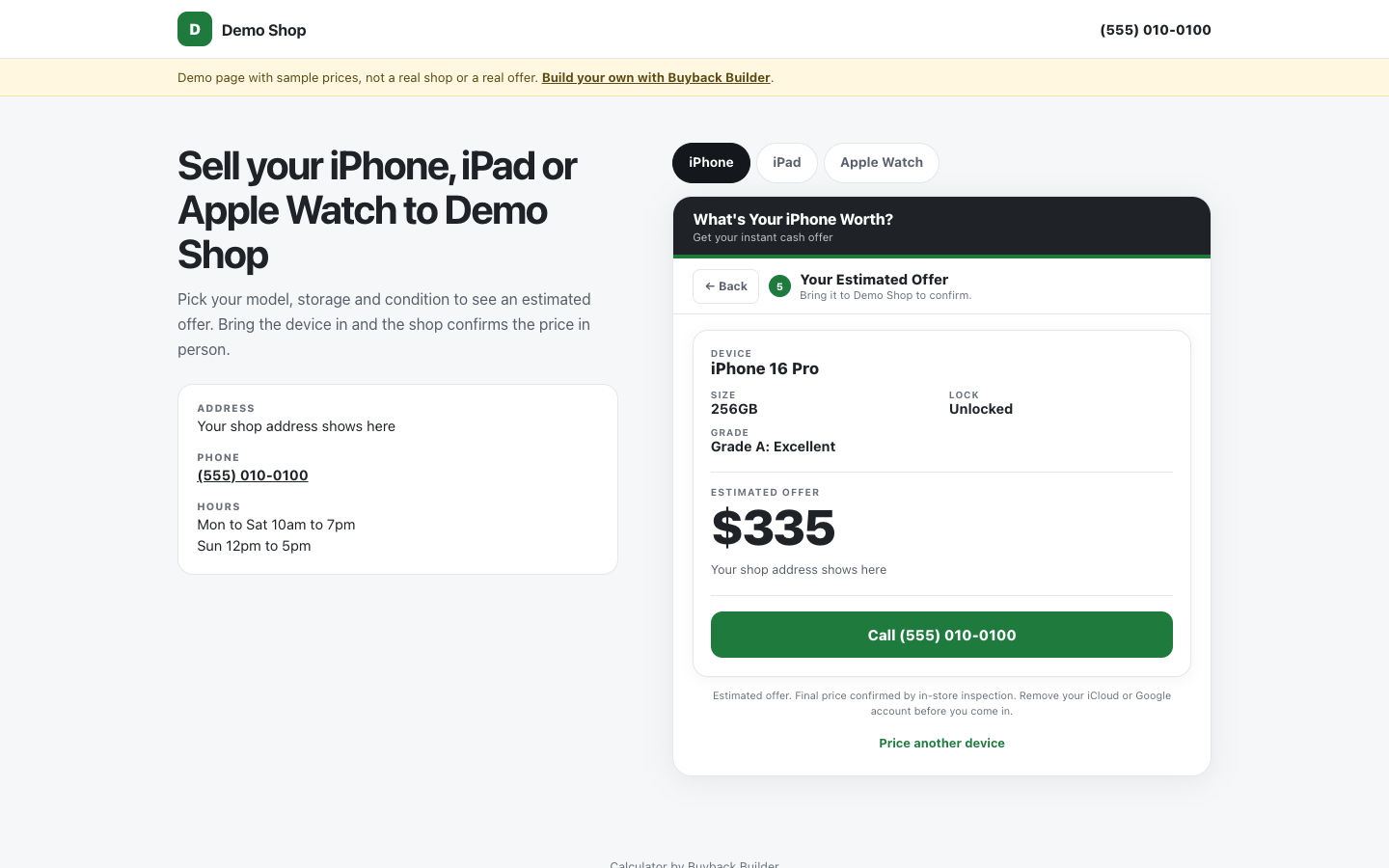
Step 5: put it where customers already look
You have two places to put a trade-in widget, and most shops use both:
- Its own page. A link you can put on Google Business Profile, in text replies and on a flyer at the counter. With Buyback Builder this is
yourshop.buybackpage.com. - Your existing website. Paste one script tag into a page on your site. There are step by step guides for Wix, WordPress and Squarespace.
Test it before you share it
Spend 10 minutes on the page as a customer would before you share the link.
- Open the page on your own phone, not your computer, and get a quote for a phone you bought this week. Check the offer matches what you actually paid.
- Try a carrier locked version and a Grade C version of the same phone. Odd gaps between grades usually mean one market price is off.
- Lock a test offer with your own email. Check the code, the price, your address and hours, and the prep steps in the email.
- Open the offer in your offers list and mark it Declined, so it does not sit in your open offers.
- Read every grade description out loud. If you would argue with a customer about one, rewrite it.
Then share it. For keeping prices current and getting found on Google, see the rest of the guides.
Frequently asked questions
How do I test my buyback page before customers see it?
Get a quote on your own phone for a device you bought recently and compare the offer to what you paid. Then lock a test offer with your own email, check the email, and mark the offer Declined in your offers list.
Do I need my own domain for a buyback page?
No. Your buyback page can live on its own address like yourshop.buybackpage.com, and you can also embed it on the website you already have. A custom domain for the buyback page itself is planned.
Which devices should a buyback website cover first?
Start with the devices you already buy most often. For most phone shops that is iPhones from the last few years. Add iPads and Apple Watches once your phone prices are settled.
How do I stop customers from picking the wrong condition?
List specific requirements under each grade, such as battery health and cracked glass, and show them before the customer chooses. Say on the page and in the offer email that the final price is confirmed when you inspect the device in person.
Can customers sell by mail through a buyback website?
Some platforms handle shipping labels and mail in trade-ins. Buyback Builder is built for walk in sales today: customers lock an offer online and bring the device to your shop. Mail in is planned.